

Checkout surveys let you collect feedback from customers right after they complete a purchase. The survey appears directly on your Shopify Thank You page and Order Status page, making it easy to capture responses while the shopping experience is still fresh.
Creating a Checkout Survey
1. Go to Surveys in the left menu and click New Survey in the top right.
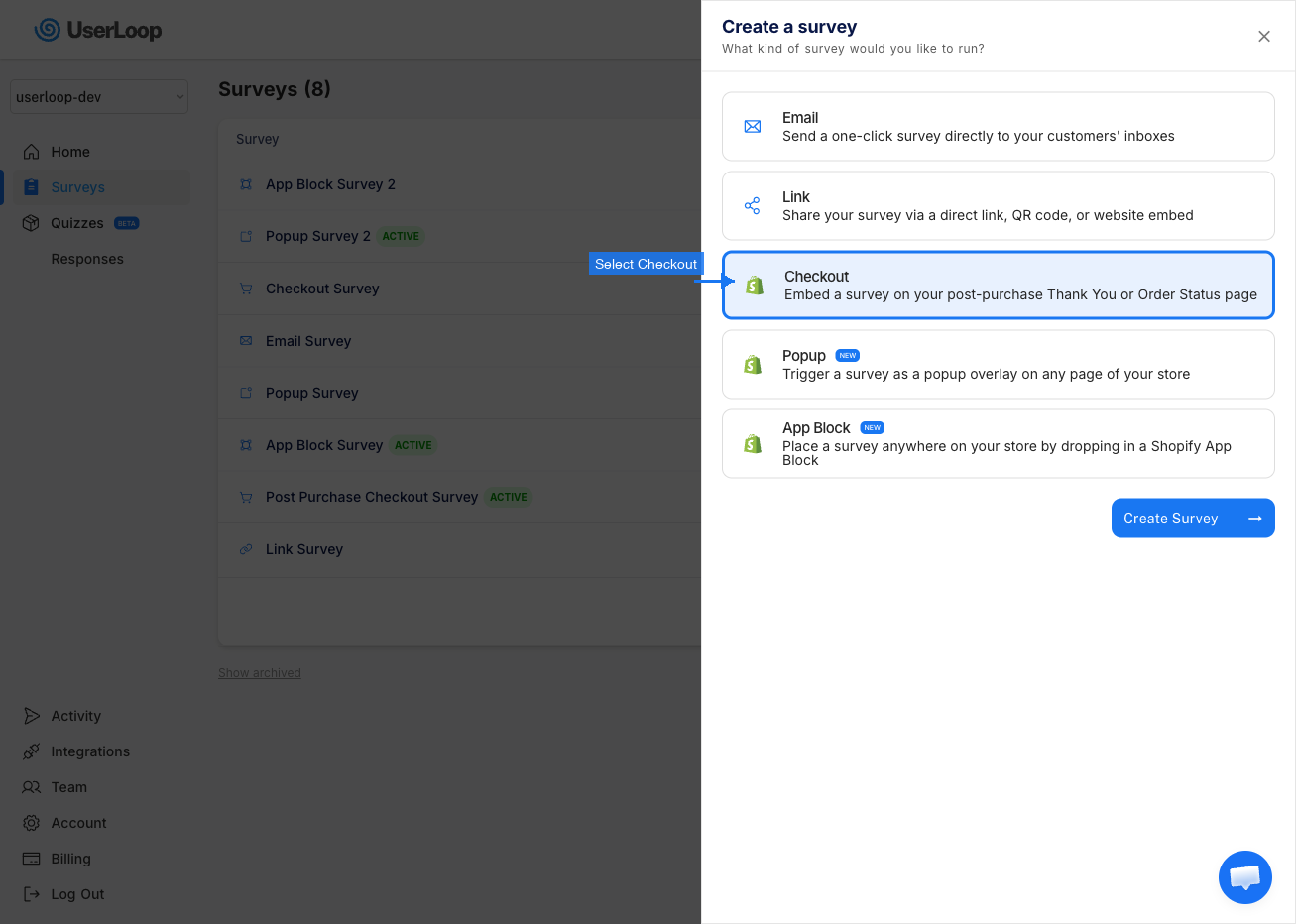
2. Select Checkout from the list of survey types, then click Create Survey.
Adding Questions
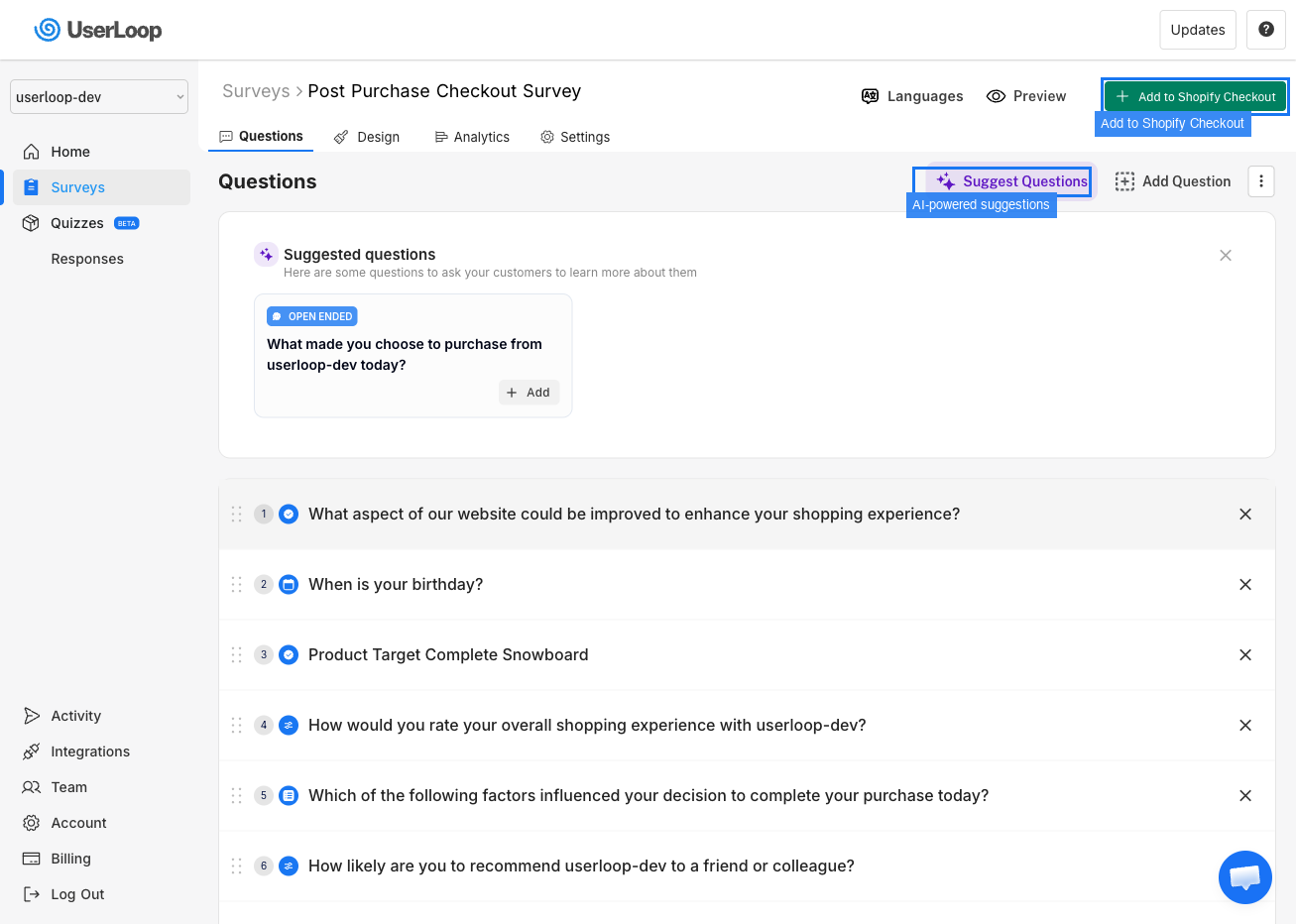
Once your survey is created, you'll land on the Questions tab. This is where you build your survey.
- Click Add Question to add a new question manually.
- Click Suggest Questions to get AI-powered question suggestions tailored to your store.
You can add multiple questions of different types including single select, multiple choice, open-ended, NPS, and Info Screens. Drag and drop questions or Info Screens to reorder them.
Add Context with an Info Screen
Use an Info Screen when you need to show content without collecting an answer—for example, to introduce the checkout survey, explain that it takes less than a minute, or describe a reward before asking the first question.

Add a heading, multi-line text, and an optional image, then place the screen anywhere in the question order. Customers use the normal Continue button to proceed. The screen counts towards progress but collects no response and is not shown as a numbered question.
Customizing the Design
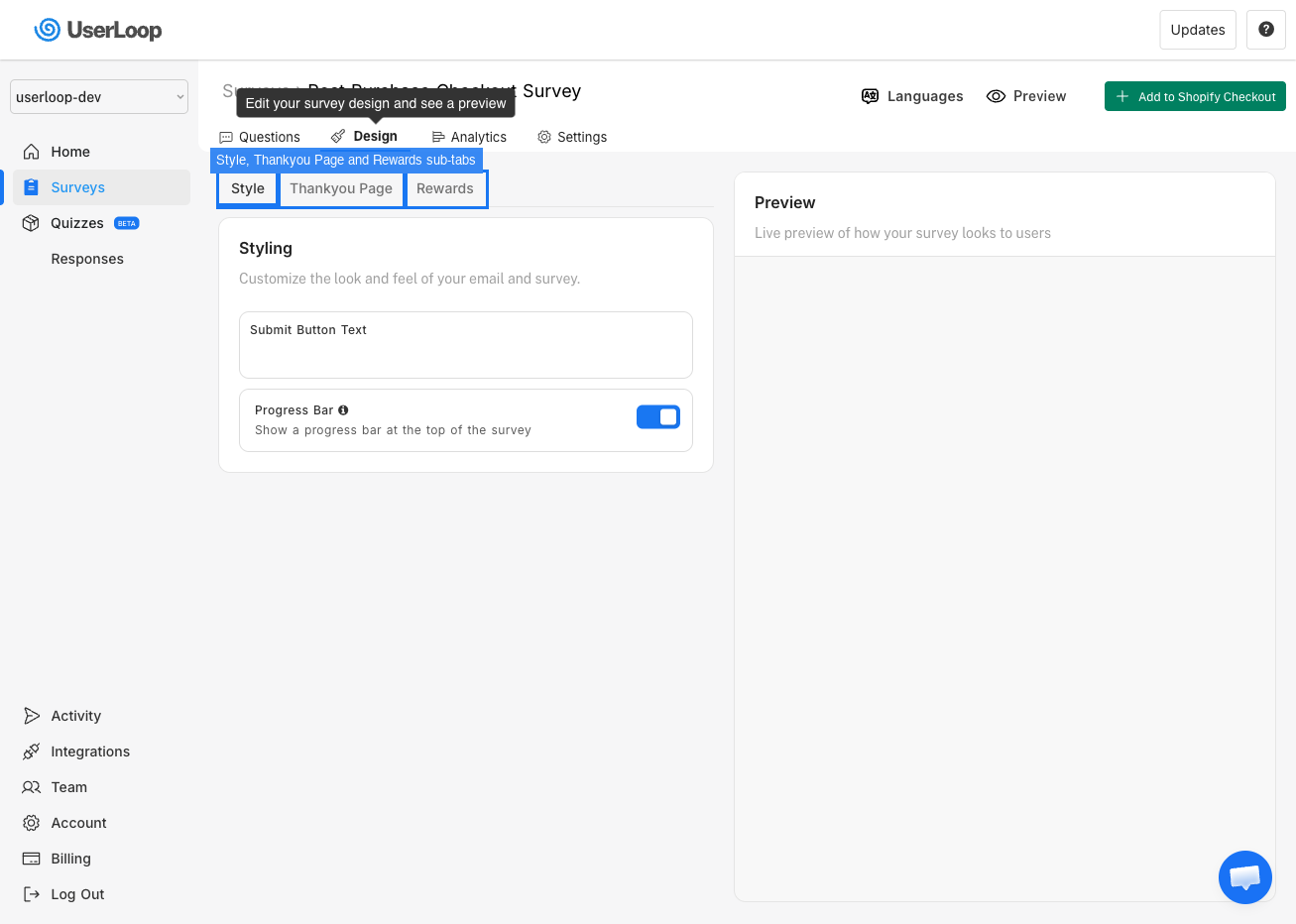
Click the Design tab to customize how your survey looks. There are three sections:
Style — Set your submit button text and toggle the progress bar on or off.
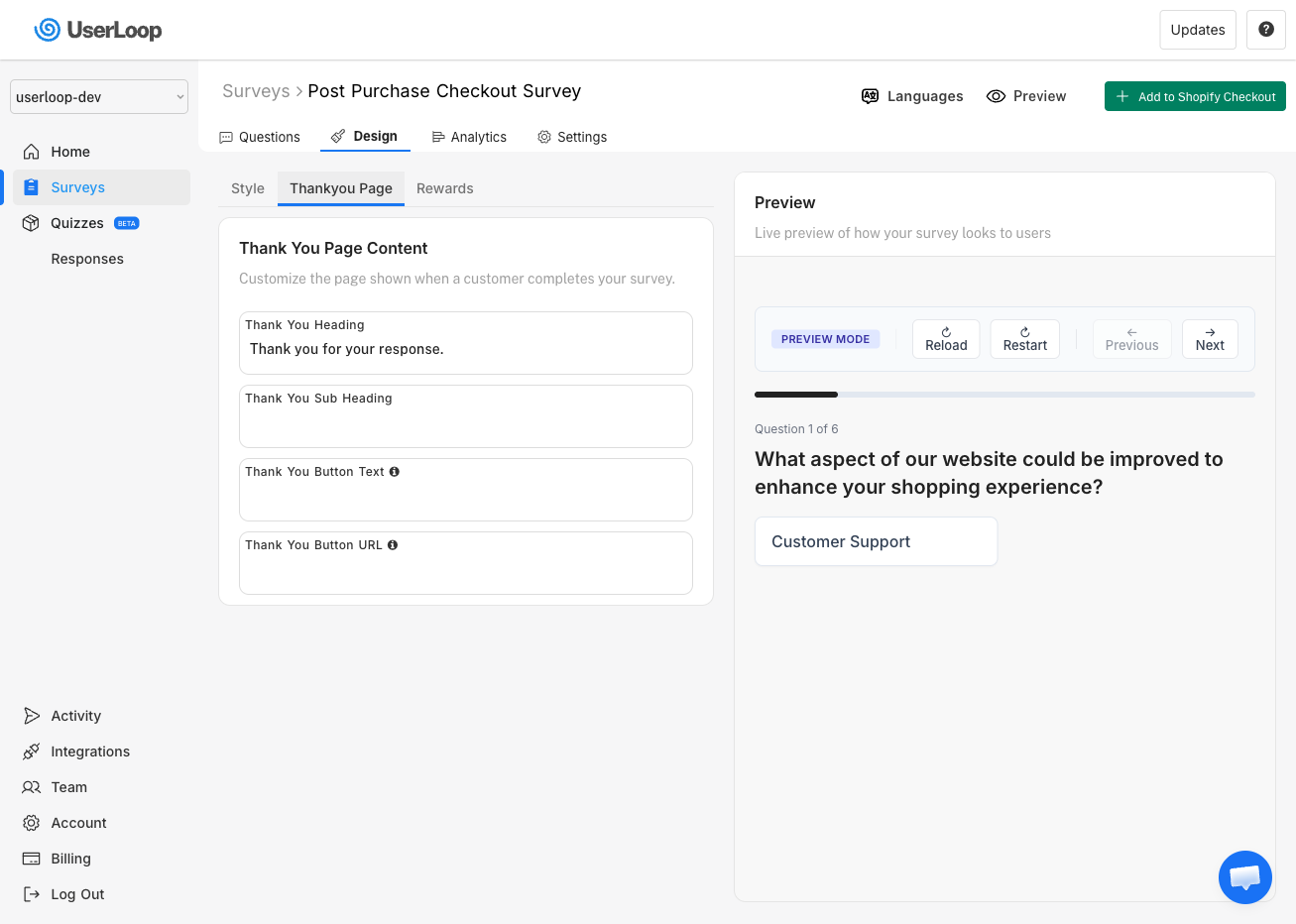
Thankyou Page — Customize the heading, sub heading, and optional button that appears after a customer completes the survey. You can add a button with a custom URL to direct customers to another page (like a product collection or review site).
Rewards — Optionally offer a discount code to customers who complete the survey. After completion, customers see the generated code in a reward card and can select Copy code to copy it. The button briefly changes to Copied so they know the code is ready to use.

Adding the Survey to Your Shopify Checkout
Once your survey is ready, click the Add to Shopify Checkout button in the top right corner. This will take you to Shopify's checkout editor where you can position the UserLoop survey block on your Thank You page and Order Status page.
We recommend adding the survey to both pages for maximum visibility.
Translating Your Survey
Click the Languages button in the top right to translate your survey into 50+ languages. UserLoop uses AI to automatically translate your questions, answer options, and thank you messages. Surveys will display in each customer's preferred language.
Need Help?
If you have any questions about setting up your checkout survey, reach out to us via live chat and we'll be happy to help.