

Follow-up questions let you ask a targeted follow-up based on which answer a customer selects. They're available on Single Select and Multi Select questions.
For example, if a customer selects "Social Media" for "How did you hear about us?", a follow-up could ask "Which social media platform?" to dig deeper into that specific answer.
Adding a Follow-Up
1. Click the three-dot menu (...) on any answer choice.
2. Choose a follow-up type:
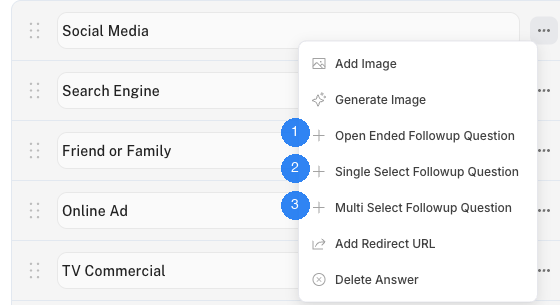
1. Open Ended Followup Question — Asks the customer to type a free-text response as a follow-up.
2. Single Select Followup Question — Shows a follow-up with a new set of single-choice answers.
3. Multi Select Followup Question — Shows a follow-up with a new set of multi-choice answers.
How Follow-Ups Work
When a customer selects an answer that has a follow-up, the follow-up question appears automatically before moving to the next question in the survey. Each answer can have one follow-up question at a time.
Answers with follow-ups are highlighted with a purple background in the editor so you can easily see which answers have follow-ups attached.
Editing a Follow-Up
Click the three-dot menu on an answer that already has a follow-up, then select Edit Followup Question to open its settings.
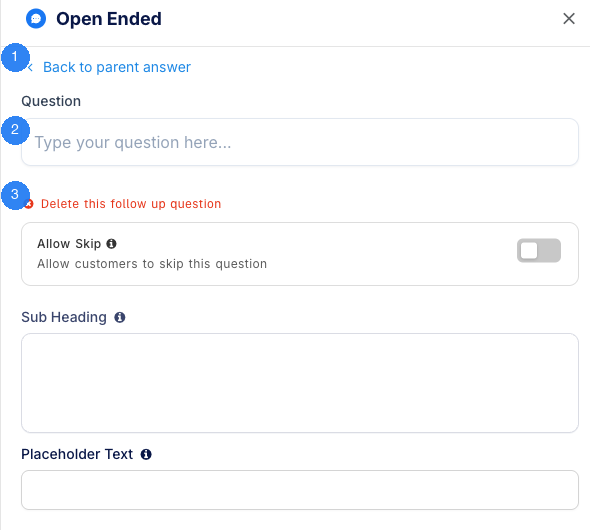
1. Back to parent answer — Returns you to the parent question's settings.
2. Question — The follow-up question text that the customer will see.
3. Delete this follow up question — Removes the follow-up from this answer.
Follow-up questions support their own settings (Allow Skip, Sub Heading, etc.) depending on the follow-up type. See the Question Settings section in Question Types for details on each setting.
Need Help?
If you have any questions about follow-up questions, reach out to us via live chat and we'll be happy to help.